Five steps from install to your first screenshot.
MCP RDP is an MCP tool: you check it is installed, point your agent at it, give it a desktop, and then ask in plain language. It runs on Linux, and it needs an RDP desktop to connect to. On macOS and Windows, MCP RDP runs in the managed Linux environment that AIDC Launch provides.
- Capturedmcp-rdp 0.9.4$ mcp-rdp versionmcp-rdp 0.9.4$ command -v mcp-rdpStep 1 of 5
Check that it arrived
The MAIT image ships
mcp-rdpand updates it with the image. Check that it runs.See mait-image.
What you getThe version command answers, and the program is where your client will look for it.
{
  "mcpServers": {
    "rdp": {
      "command": "mcp-rdp",
      "args": ["serve"]
    }
  }
}
Step 2 of 5Connect it to your agent
Any client that accepts an
mcpServerslaunch entry uses this shape. Place it where your client keeps server configuration and restart the client.The server speaks over standard input and output. If you reach your tools through the registry instead, add
rdponce withmcp_registry_addand the tools carry therdp__prefix (registry guide).What you getA client that starts the service on its own, and an agent that can call the twelve rdp tools.
- Capturedmcp-rdp 0.9.4YouMake a 1280 by 720 desktop with a window manager and connect to it.Tool callxsession_create { "name": "rdp-guide", "resolution": "1280x720", "wm": "openbox", "audio": "bridge" }What happensThe session starts in state running, with RDP on 127.0.0.1 over TLS, on a port the result reports and a token in the result.Tool callrdp_connection_create { "connectionId": "guide-rdp", "host": "127.0.0.1", "port": <port>, "username": "xsession", "password": "<token>", "security": "tls", "graphicsMode": "rfx" }What happensReturns status connected, with saveVideoMode off and no recording running.AgentConnected as guide-rdp. The token stays in the tool result and I will not repeat it.Step 3 of 5
Give it a desktop and connect
MCP RDP does not create a desktop, so you need one to connect to. The quickest on Linux is a private desktop from MCP XSession; a Windows or GNOME machine works the same way with its own host and account, ideally named by a profile on the server so the password is never typed into the chat.
Use the graphics mode
rfxfor this first exercise: it is the one that always gives a picture you can read. The connection ID belongs to this MCP session, so keep the following calls on the same client.What you getA named connection,
guide-rdp, to a live desktop. - Capturedmcp-rdp 0.9.4YouShow me what is on the desktop.Tool callrdp_screenshot { "connectionId": "guide-rdp", "filename": "desktop.png", "delay": 1500 }What happensA 1280 by 720 PNG is published as a resource, with its path, size and checksum.AgentThe desktop answers. A Chromium window with an Order notes page is open, with a Note field and a Save button. I saved desktop.png.
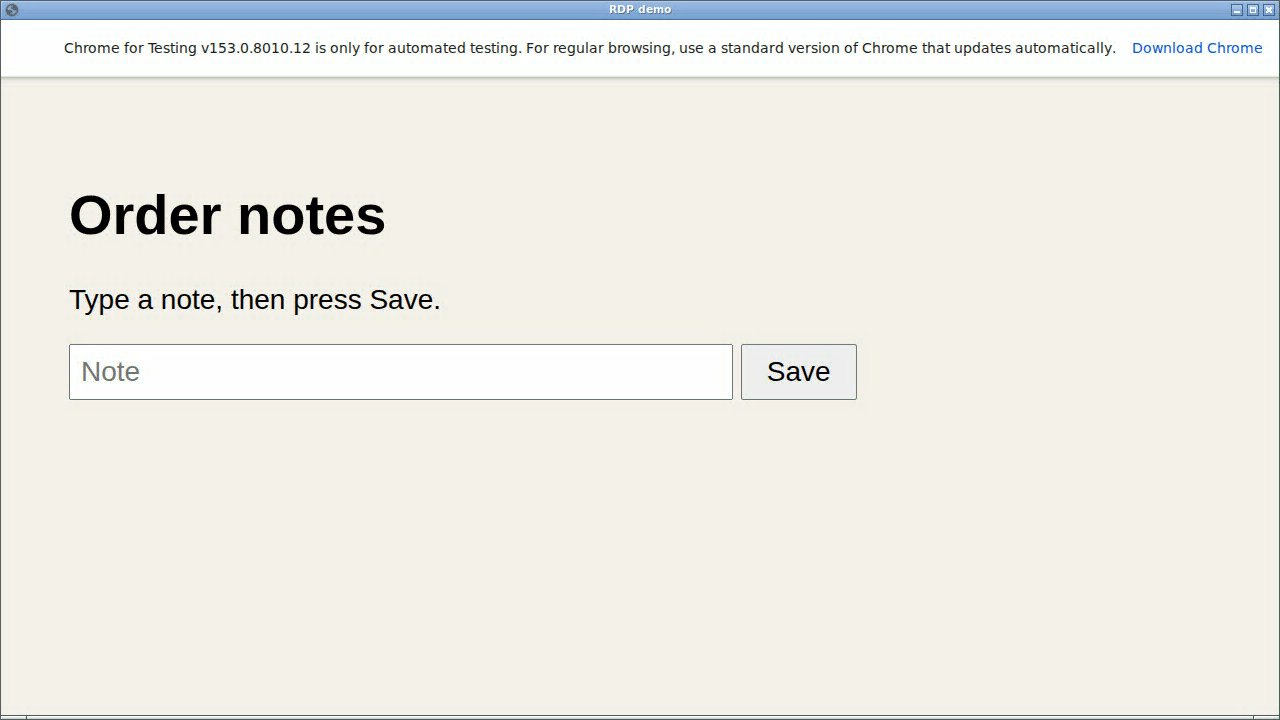
A real capture of the desktop above. Step 4 of 5Look at it
Ask for a screenshot and look at the image, not only at the success message. A black image means the desktop has not painted.
The coordinates you click with are the ones in this image, so leave the size alone (
maxSizestays zero) when you plan to click.What you getA real picture of the desktop, with the coordinates you will use.
- Capturedmcp-rdp 0.9.4YouClick the Note field, then close the connection and the desktop.Tool callrdp_pointer { "connectionId": "guide-rdp", "action": "click", "x": 400, "y": 371 }What happensThe tool answers that it left-clicked once at 400 by 371.Tool callrdp_connection_drop { "connectionId": "guide-rdp" }What happensThe slot is removed, with status dropped and no video.Tool callxsession_destroy { "sessionId": "rdp-guide" }AgentThe click was sent and the connection and desktop are gone.Step 5 of 5
Click, then finish
The agent clicks where it saw a control. The click confirmation only says the input was sent: take another screenshot to see what the application did, and do it before you type into a field.
Stop and fetch any recording before you drop the connection, because dropping ends it. Typing works the same way as clicking, with
rdp_type; see Use cases.What you getA first click on a real desktop, and nothing left running.
A connection that sees and acts.
MCP RDP is installed, connected to your agent and driving a desktop you can see. Every action is confirmed only as sent, so the habit to keep is: act, then take a screenshot and check.