mait.sh1.132.1

Private beta: features and content may change. No warranty; use at your own risk.

Use cases

Six things you ask your agent to do on a remote desktop, from looking at it to recording it with sound.

Beta
Look

Look at a desktop and tell me what you see.

You want your agent to check what an application shows, without you describing it.

Capturedmcp-rdp 0.9.4
YouConnect to the desktop and tell me what is on the screen.
Tool callrdp_connection_create { "connectionId": "guide-rdp", "host": "127.0.0.1", "port": <port>, "username": "xsession", "password": "<token>", "security": "tls", "graphicsMode": "rfx" }
What happensReturns status connected.
Tool callrdp_screenshot { "connectionId": "guide-rdp", "filename": "rdp-guide-first.png", "delay": 1500 }
What happensA 1280 by 720 PNG is published as a resource. It shows a Chromium dialog on a black background.
Tool callrdp_connection_list {}
What happensOne connection, guide-rdp, with its host, port and security protocol; no password.
AgentThe desktop shows a Chromium Additional Terms of Service dialog with Cancel and Accept buttons. Nothing else is open yet.
The desktop after the dialog was accepted
A real capture, taken after the dialog was accepted.
Click and type

Click and type, then check.

You want your agent to fill in a form on an application that has no automation interface.

Illustrative conversation
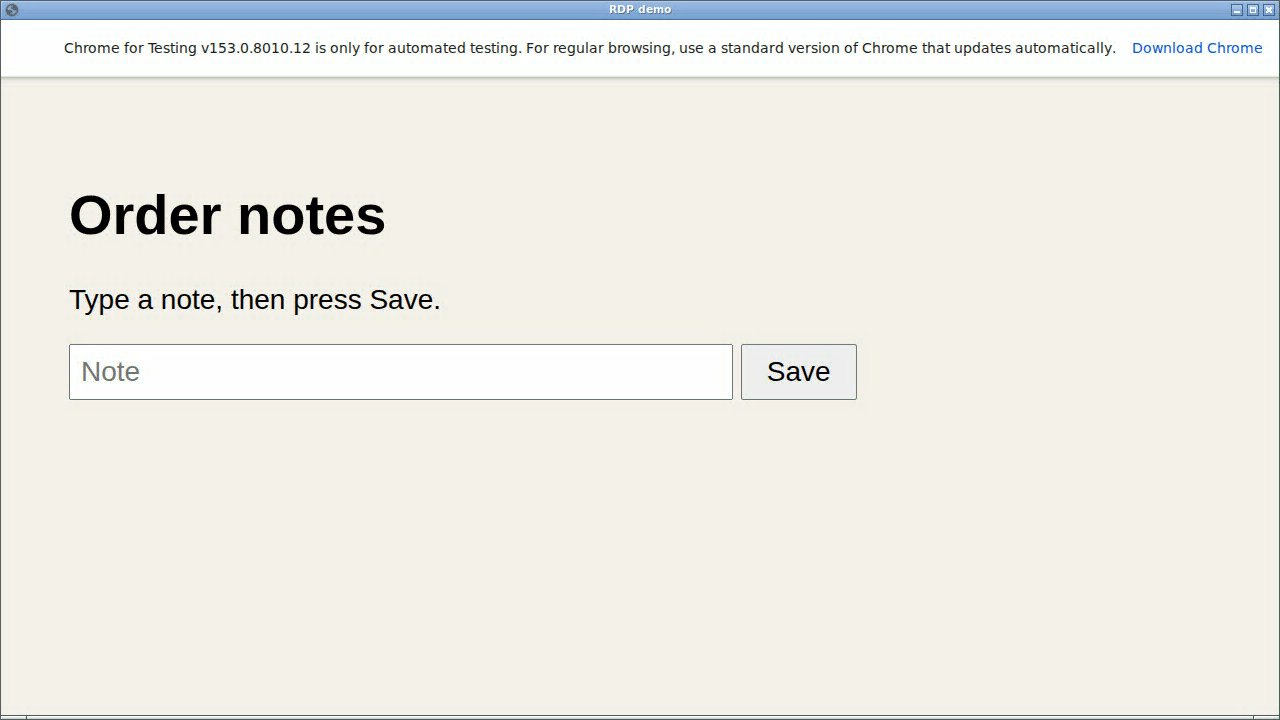
YouEnter "Deliver after 5 pm" in the note field and press Save.
Tool callrdp_pointer { "connectionId": "guide-rdp", "action": "click", "x": 400, "y": 371 }
What happensThe tool answers that it left-clicked once at 400 by 371.
Tool callrdp_type { "connectionId": "guide-rdp", "action": "text", "text": "Deliver after 5 pm" }
What happensThe tool answers with the text it typed.
Tool callrdp_pointer { "connectionId": "guide-rdp", "action": "click", "x": 798, "y": 371 }
Tool callrdp_screenshot { "connectionId": "guide-rdp", "filename": "saved.png", "delay": 500 }
AgentThe note field reads "Deliver after 5 pm" and the page says "Saved: Deliver after 5 pm".
Record

Record the desktop with sound and picture.

You want proof of what an application did, with the sound it played, so a person can watch and listen afterwards.

Capturedmcp-rdp 0.9.4
YouRecord a minute of the desktop with sound while the app runs, and tell me whether it made any sound.
Tool callrdp_start_video { "connectionId": "guide-rdp", "audio": true, "maxDurationSecs": 60, "filename": "guide-rdp-av.webm" }
What happensReturns status recording, 1280 by 720 at 10 frames per second.
What happensA shell command plays a four-second 440 Hz tone into the desktop's sound server, while the agent clicks and types in the application.
Tool callrdp_stop_video { "connectionId": "guide-rdp" }
What happensReturns the video resource and its statistics: codec VP9, about 17 seconds, 31 frames encoded, hasAudio true and 226 audio packets.
AgentI recorded about 17 seconds. The file has an audio track with 226 packets, so sound was written. I saved guide-rdp-av.webm.

Recording runs in the background while the other tools keep working, so the agent can click and take screenshots during it. Run one recording per connection at a time.

Sound

Capture or send sound on its own.

You only need the sound, to check that an application played an alert, or you need to send audio to an application that listens to a microphone.

Capturedmcp-rdp 0.9.4
YouSave what the desktop plays for the next few seconds, and tell me if anything arrived.
Tool callrdp_sound { "connectionId": "guide-rdp", "action": "status" }
What happenschannel_active is true, so the desktop is offering sound output.
Tool callrdp_sound { "connectionId": "guide-rdp", "action": "capture_start", "filePath": "/srv/evidence/tone.opus", "format": "opus", "maxDuration": 20 }
What happensReturns a captureId and status capturing.
What happensA shell command plays a four-second tone into the desktop's sound server.
Tool callrdp_sound { "connectionId": "guide-rdp", "action": "capture_stop", "captureId": "<captureId>" }
What happensReturns status stopped, with bytesReceived 793800 and the duration of the capture.
AgentSound arrived: 793800 bytes were saved in tone.opus. The capture stayed open for about 14 seconds, so the file also holds the silence around the tone.
Windows

Check a Windows machine like a support engineer.

A Windows machine is reported as faulty, and you want your agent to check it the way a support engineer would: which Windows is it, does the web work, does sound work.

Capturedmcp-rdp 0.9.4
YouOn the Windows machine, tell me which Windows version it runs, check that a web page loads and that it can play sound, and keep a short note.
Tool callrdp_connection_create { "connectionId": "win-check", "host": "<windows-host>", "port": 3389, "username": "<account>", "password": "<password>", "security": "auto", "template": "windows" }
What happensReturns status connected.
Tool callrdp_screenshot { "connectionId": "win-check", "filename": "desktop.png", "delay": 1500 }
What happensA completely black frame. Moving the pointer once and taking the screenshot again shows the Windows 11 desktop, with nothing open.
Tool callrdp_key_press { "connectionId": "win-check", "key": "Win" }
What happensThe Start menu opens.
Tool callrdp_pointer { "connectionId": "win-check", "action": "click", "x": 687, "y": 219 }
What happensSettings opens from the Start menu, slowly. The agent clicks System, scrolls down, clicks About and scrolls to Windows info.
Tool callrdp_screenshot { "connectionId": "win-check", "filename": "about.png", "delay": 4000 }
What happensThe About page: Windows 11 Pro, version 25H2, OS build 26200.9457.
Tool callrdp_pointer { "connectionId": "win-check", "action": "click", "x": 36, "y": 140, "double": true }
Tool callrdp_type { "connectionId": "win-check", "action": "text", "text": "example.com", "enter": true }
Tool callrdp_screenshot { "connectionId": "win-check", "filename": "edge.png", "delay": 6000 }
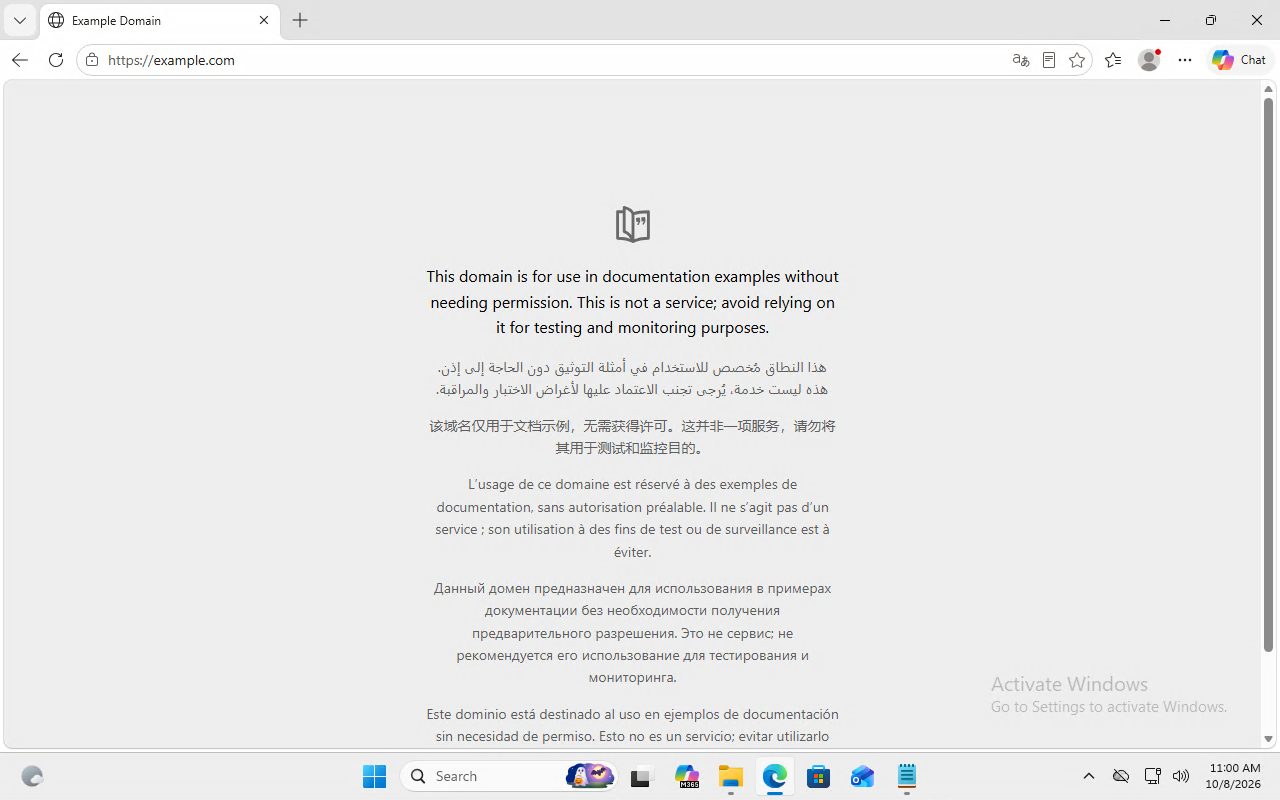
What happensThe browser shows the Example Domain page.
Tool callrdp_type { "connectionId": "win-check", "action": "text", "text": "windows pro ready", "enter": true }
Tool callrdp_type { "connectionId": "win-check", "action": "text", "text": "sound next" }
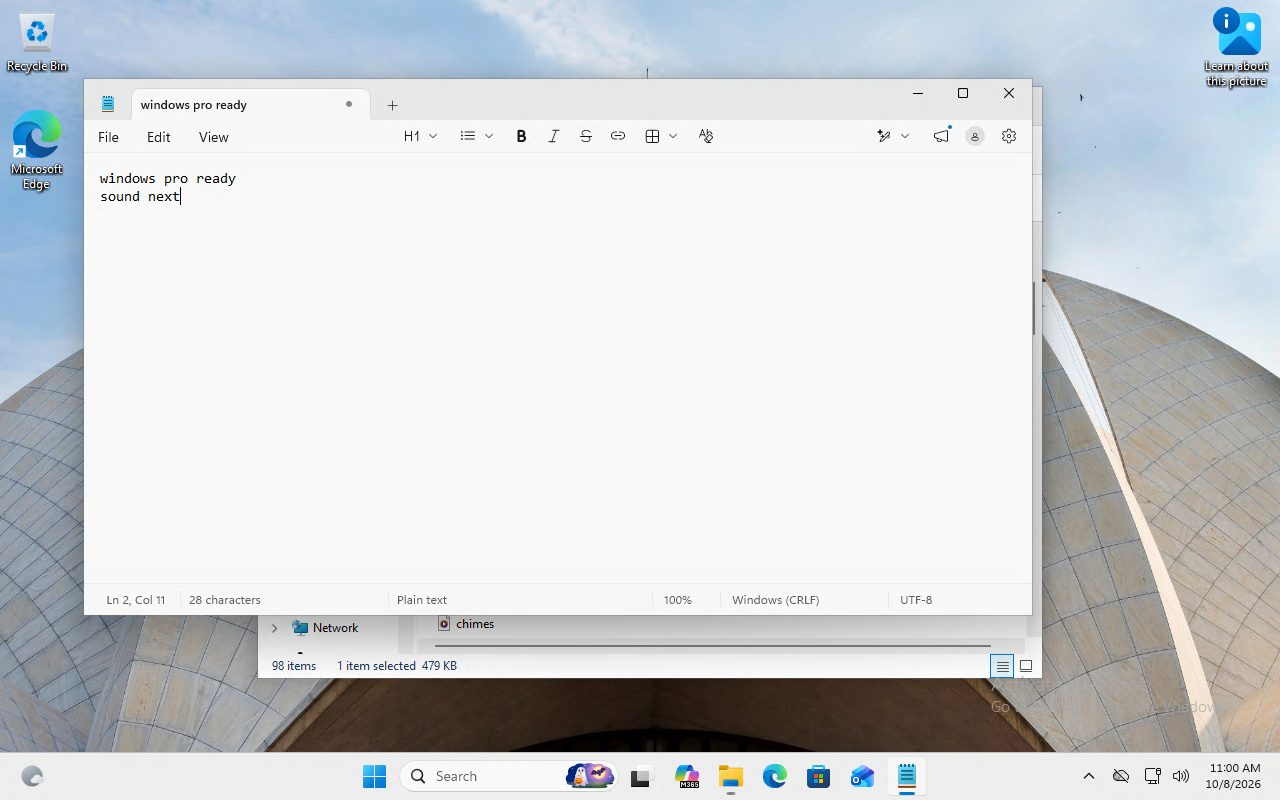
What happensBoth lines appear in Notepad as typed.
Tool callrdp_sound { "connectionId": "win-check", "action": "capture_start", "filePath": "<evidence folder>/windows-alarm.opus", "format": "opus", "maxDuration": 25 }
What happensReturns a captureId and status capturing.
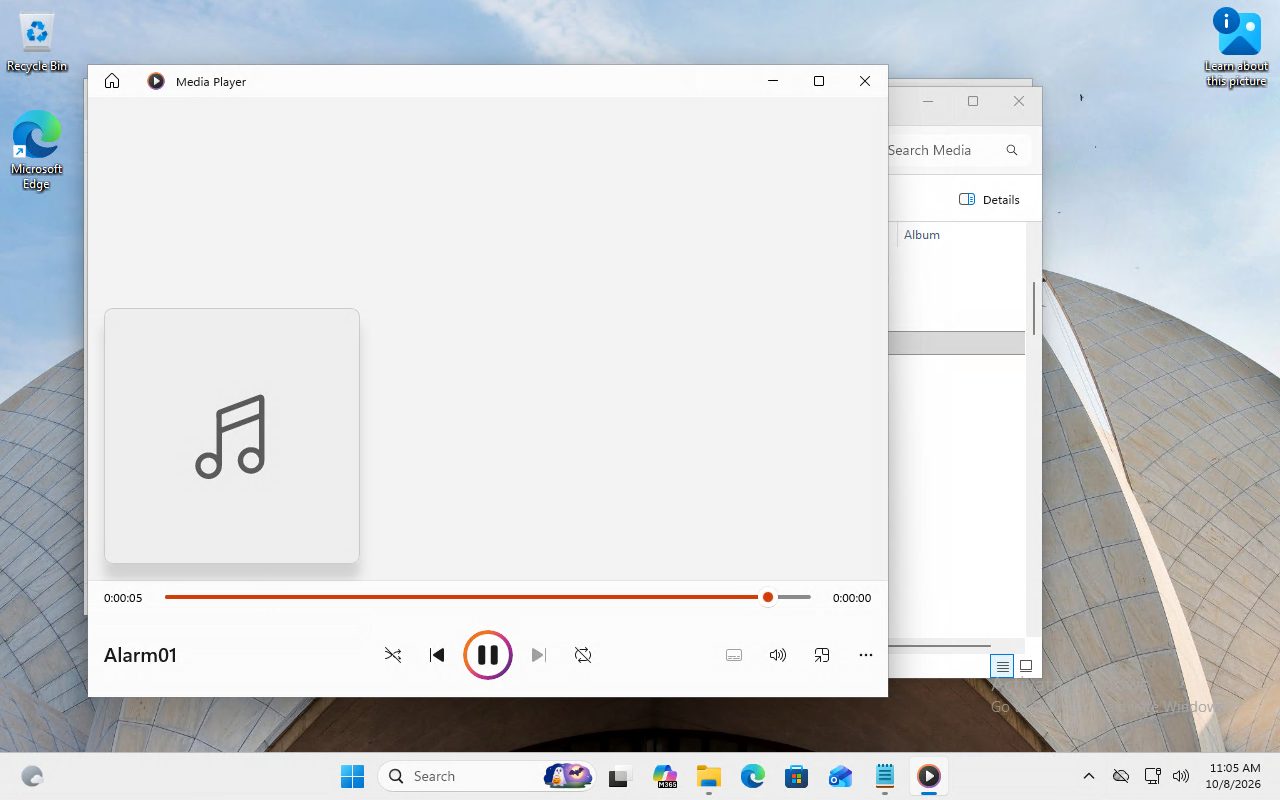
What happensThe agent opens the Media folder in File Explorer by clicking through This PC, Local Disk and Windows, and double-clicks the Alarm01 sound. Media Player opens and plays it.
Tool callrdp_sound { "connectionId": "win-check", "action": "capture_stop", "captureId": "<captureId>" }
What happensReturns status stopped, with bytesReceived 962560 over a capture of about 18 seconds.
AgentThis is Windows 11 Pro, version 25H2, build 26200.9457. The browser loaded a public page, the note is written, and the alarm sound reached me: 962560 bytes of sound were saved. The Win key opened the Start menu, but key combinations did not work, so I used the mouse. I closed what I opened.
The Edge browser on the Windows machine showing the Example Domain page
A real capture: the browser loaded a public page.
Notepad on the Windows machine with the two lines the agent typed
A real capture: the note the agent wrote.
Media Player playing the Alarm01 system sound on the Windows machine
A real capture: the alarm sound playing while the sound was being saved.

Look at the screenshot after typing. Short lowercase lines type most reliably; keep text short, and note that key combinations with Ctrl or Win plus a letter do not work on every target. The tool answers success when input is sent, so the picture is the proof.
Condense

Review a long recording quickly.

You recorded a run and nobody wants to watch all of it, or you want the sound kept with the picture.

Capturedmcp-rdp 0.9.4
YouRecord while you write a note and play the alarm sound, but only keep what changes, and give me a screenshot for each change.
Tool callrdp_start_video { "connectionId": "win-check", "audio": true, "maxDurationSecs": 120, "filename": "windows-support.webm", "condense": { "profile": "responsive", "keepOriginal": false } }
What happensReturns status recording at 1280 by 800, analysing at 15 frames a second.
Tool callrdp_type { "connectionId": "win-check", "action": "text", "text": "windows pro ready", "enter": true }
Tool callrdp_type { "connectionId": "win-check", "action": "text", "text": "sound next" }
Tool callrdp_pointer { "connectionId": "win-check", "action": "click", "x": 650, "y": 660 }
Tool callrdp_pointer { "connectionId": "win-check", "action": "click", "x": 478, "y": 344, "double": true }
Tool callrdp_stop_video { "connectionId": "win-check" }
What happensReturns the condensed video, 19.7 seconds long, with hasAudio true and 273 audio packets, and an analysis block: 6 events and 29 screenshots.
AgentThe condensed file shows the note being typed, the Explorer window and Media Player opening, and the alarm sound plays in the audio track. Nothing else changed, so nothing else is in it.
A real condensed recording of a Windows 11 virtual machine, 19.7 seconds long, with sound.

See the condensing tutorial for the profiles and what to expect.