Five steps from install to your first controlled desktop.
MCP VNC is an MCP tool: you check it is installed, point your agent at it, and then ask in plain language. You need a desktop that offers VNC and that you are allowed to operate, with its host, port and password.
- Capturedmcp-vnc 0.7.5$ mcp-vnc versionmcp-vnc 0.7.5Step 1 of 5
Check that it arrived
The MAIT image ships
mcp-vncand updates it with the image. Check that it runs.When you install it on its own, a plain binary for Linux on x86_64 or ARM64 is all there is. On macOS and Windows, MCP VNC runs in the managed Linux environment that AIDC Launch provides. See mait-image.
What you getThe version command answers, so the service is installed and can start.
{
  "mcpServers": {
    "vnc": {
      "command": "mcp-vnc",
      "args": ["serve"],
      "env": { "VNC_HOST": "desktop.example.test", "VNC_PASSWORD": "<vnc-password>" }
    }
  }
}
Step 2 of 5Connect it to your agent
Any client that accepts an
mcpServerslaunch entry uses this shape. Place it where your client keeps server configuration and restart the client. The environment gives the default target; leave it out and name the target in each connection instead.Keep the password out of shared configuration. If you reach your tools through the registry instead, add
vnconce withmcp_registry_addand the tools carry thevnc__prefix (registry guide).What you getA client that starts the service on its own, and an agent that can call the twelve
vnc_tools.- Capturedmcp-vnc 0.7.5YouConnect to the disposable desktop on this machine and call it guide-demo.Tool callvnc_connection_create { "connectionId": "guide-demo", "host": "127.0.0.1", "port": 5988, "template": "default", "name": "Guide demo" }What happensReturns status connected for guide-demo, with the host and port, and recording false.Agentguide-demo is connected. Nothing has changed on the desktop yet.Step 3 of 5
Connect to a desktop
Ask your agent to connect. It calls
vnc_connection_createwith a name of its own choosing, so every later call can say which desktop it means. Pick the template for the target:defaultfor an unknown server,macfor macOS Screen Sharing (also passusername),libvirtfor a virtual machine console on a fast network.A connected answer means the handshake worked. An error here means nothing connected: see Troubleshooting. This desktop needs no password; yours will, so the agent passes the one you were given.
What you getA named connection to a real desktop, and a record of which target it points at.
- Capturedmcp-vnc 0.7.5YouShow me the desktop, record what you do, then type "hello from MCP VNC" in the text box.Tool callvnc_screenshot { "connectionId": "guide-demo", "colorDepth": 24, "imageFormat": "jpeg", "filename": "vnc-before.jpg" }What happensA 1280 by 720 image is published as a resource: a window with an empty text box.Tool callvnc_start_video { "connectionId": "guide-demo", "quality": "standard", "maxDurationSecs": 120 }What happensReturns status recording at 1280 by 720 and 10 frames a second.Tool callvnc_pointer { "connectionId": "guide-demo", "action": "click", "x": 400, "y": 300 }What happensLeft clicked Single at (400, 300).Tool callvnc_type { "connectionId": "guide-demo", "action": "text", "text": "hello from MCP VNC" }What happensTyped text: hello from MCP VNC.Tool callvnc_key_press { "connectionId": "guide-demo", "key": "Ctrl+a" }What happensKey pressed: Ctrl+a.Tool callvnc_screenshot { "connectionId": "guide-demo", "colorDepth": 24, "imageFormat": "jpeg", "filename": "vnc-after.jpg", "delay": 500 }AgentThe text box now holds "hello from MCP VNC", selected. I saved vnc-after.jpg.
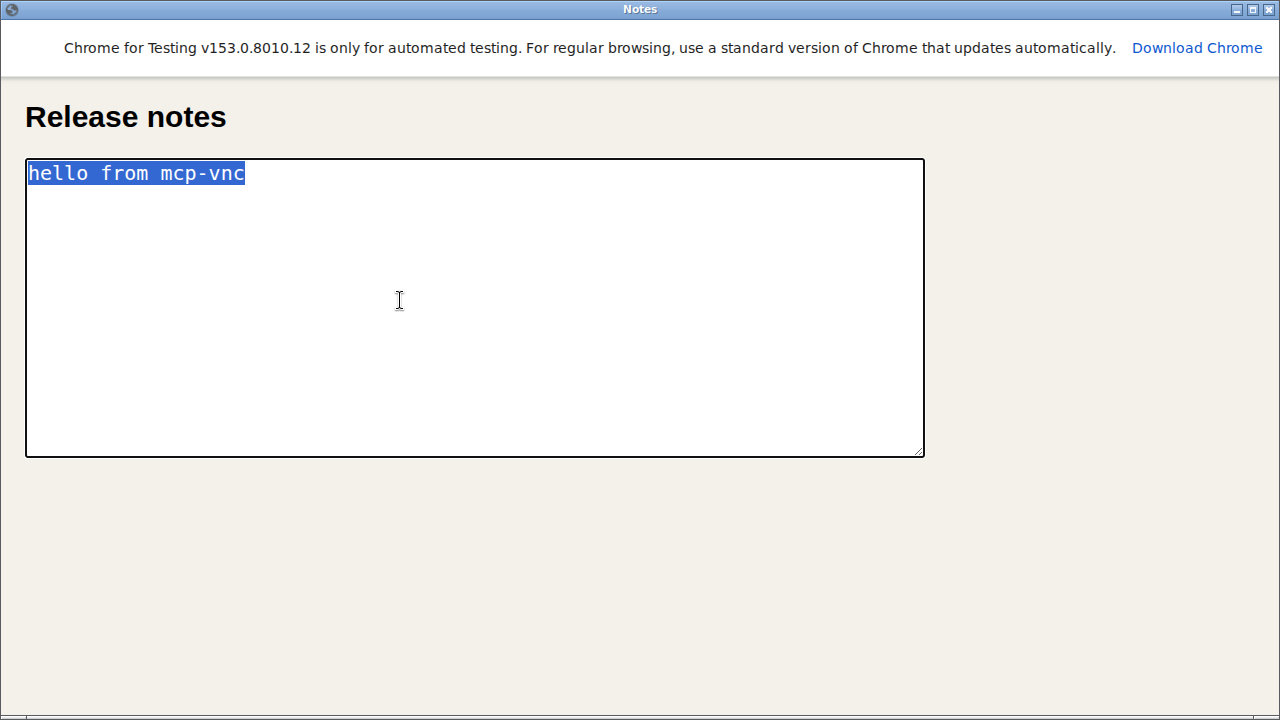
A real capture of the run above. Step 4 of 5Look at it and change one thing
The agent looks first, because the picture gives it the size of the screen and the position of everything on it. Then it clicks in a text box, types a line and looks again. Typing is paced to the target, so a long text is split across calls.
A click or a typed text that returns without an error says the input was sent, not that the application accepted it. The second screenshot is the proof.
What you getOne change you can see on the desktop, and a recording that started before it.
- Capturedmcp-vnc 0.7.5YouThat is enough. Stop recording and disconnect.Tool callvnc_stop_video { "connectionId": "guide-demo" }What happensReturns status stopped and a WebM video resource, VP9, 1280 by 720, with stop reason User. The recording statistics list 52 frames encoded and no frames dropped, and report that it has no audio.Tool callvnc_connection_drop { "connectionId": "guide-demo" }What happensReturns status dropped.AgentThe recording is saved and guide-demo is disconnected. Dropping the connection does not undo anything I typed on the desktop.Step 5 of 5
Stop the recording and disconnect
The recording belongs to the connection and is published when you stop it or drop the connection. Save the video through your client before the session ends. Then drop the connection.
Dropping a connection does not undo what the agent did on the desktop. Undo it with the application's own undo, and look at the screen to be sure.
What you getA saved video of the interaction, and no connection left open.
A desktop the agent can see, drive and record.
MCP VNC is installed, connected to your agent and controlling a desktop you can see. Keep to desktops you are authorised to operate, and let one agent drive a desktop at a time: the pointer and keyboard are shared with anyone else using it.