mait.sh1.132.1

Private beta: features and content may change. No warranty; use at your own risk.

Use cases

Seven things you ask your agent to do on a remote desktop, from clicking through an application with no API to recording what it did.

Beta
No API

Operate an application that has no API.

You need something done in a graphical program that offers no automation, and it runs on a machine you can only reach through screen sharing.

Capturedmcp-vnc 0.7.5
YouConnect to that desktop, type a line in the text box and show me the result.
Tool callvnc_connection_create { "connectionId": "guide-demo", "host": "127.0.0.1", "port": 5988, "template": "default", "name": "Guide demo" }
What happensReturns status connected.
Tool callvnc_screenshot { "connectionId": "guide-demo", "colorDepth": 24, "imageFormat": "jpeg" }
What happensA 1280 by 720 image: a window with an empty text box.
Tool callvnc_pointer { "connectionId": "guide-demo", "action": "click", "x": 400, "y": 300 }
What happensLeft clicked Single at (400, 300).
Tool callvnc_type { "connectionId": "guide-demo", "action": "text", "text": "hello from MCP VNC" }
What happensTyped text: hello from MCP VNC.
Tool callvnc_screenshot { "connectionId": "guide-demo", "colorDepth": 24, "imageFormat": "jpeg", "delay": 500 }
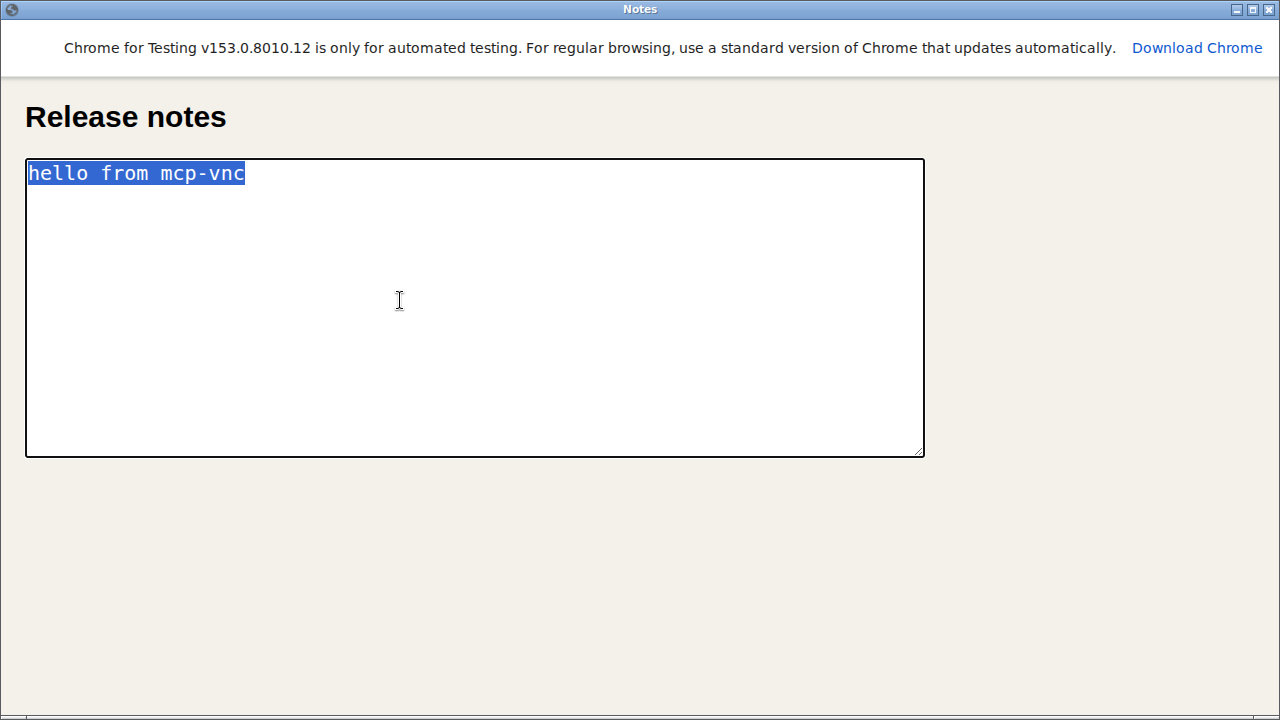
AgentThe line is in the text box. I saved the picture.
The text box after the agent typed into it
A real capture of the run above.
Record

Record what the agent did.

You want to see afterwards what the agent did on the desktop, without trusting its own summary.

Capturedmcp-vnc 0.7.5
YouRecord a video while you work, then give me the file.
Tool callvnc_start_video { "connectionId": "guide-demo", "quality": "standard", "maxDurationSecs": 120 }
What happensReturns status recording at 1280 by 720, 10 frames a second.
What happensThe agent works on the desktop with the pointer and the keyboard.
Tool callvnc_stop_video { "connectionId": "guide-demo" }
What happensReturns status stopped and a WebM resource. Statistics: VP9 codec, 26 seconds, 52 frames encoded, none dropped, stop reason User, no audio.
AgentThe video is saved. It covers 26 seconds and has no sound, because VNC carries none.
Mac

Reach a Mac through Screen Sharing.

You want your agent to use a Mac that has Screen Sharing switched on, for example to check how an application looks there.

Illustrative conversation
YouConnect to the Mac with the account I gave you and take a screenshot.
Tool callvnc_connection_create { "connectionId": "mac-desk", "host": "mac.example.test", "username": "<account>", "password": "<password>", "template": "mac", "name": "Lab Mac" }
What happensReturns status connected for mac-desk.
Tool callvnc_screenshot { "connectionId": "mac-desk", "colorDepth": 24 }
AgentI am connected to the Mac and its desktop is on screen. I will keep each typing call short so no key is dropped.
Smoke test

Smoke-test a fresh desktop as a user would.

A virtual machine holds a freshly installed Ubuntu desktop with no helper inside it, and you want to know that it is usable: that someone can log in, browse the web, run a command and save a file.

Capturedmcp-vnc 0.7.5
YouConnect to the console of that virtual machine, log in as user1, and check that it can open our documentation in Firefox, run a command in a terminal and create a folder in Files.
Tool callvnc_connection_create { "connectionId": "ubuntu-vm", "host": "<hypervisor host>", "port": 5901, "template": "libvirt", "name": "Ubuntu desktop VM" }
What happensReturns status connected for ubuntu-vm.
Tool callvnc_screenshot { "connectionId": "ubuntu-vm", "colorDepth": 24 }
What happensA 1280 by 800 image: the Ubuntu login screen with four accounts.
Tool callvnc_pointer { "connectionId": "ubuntu-vm", "action": "click", "x": 580, "y": 396 }
What happensLeft clicked Single at (580, 396), on the account user1.
Tool callvnc_type { "connectionId": "ubuntu-vm", "action": "text", "text": "<password>", "enter": true }
What happensTyped text and Enter. A screenshot taken 12 seconds later still shows the login screen fading out; one taken 20 seconds after that shows the desktop.
Tool callvnc_pointer { "connectionId": "ubuntu-vm", "action": "click", "x": 33, "y": 65 }
What happensFirefox opens from the dock. The agent works through its welcome pages with a few more clicks.
Tool callvnc_key_press { "connectionId": "ubuntu-vm", "key": "Ctrl+t" }
Tool callvnc_type { "connectionId": "ubuntu-vm", "action": "text", "text": "https://mait.sh/docs", "enter": true }
Tool callvnc_screenshot { "connectionId": "ubuntu-vm", "colorDepth": 24, "delay": 6000 }
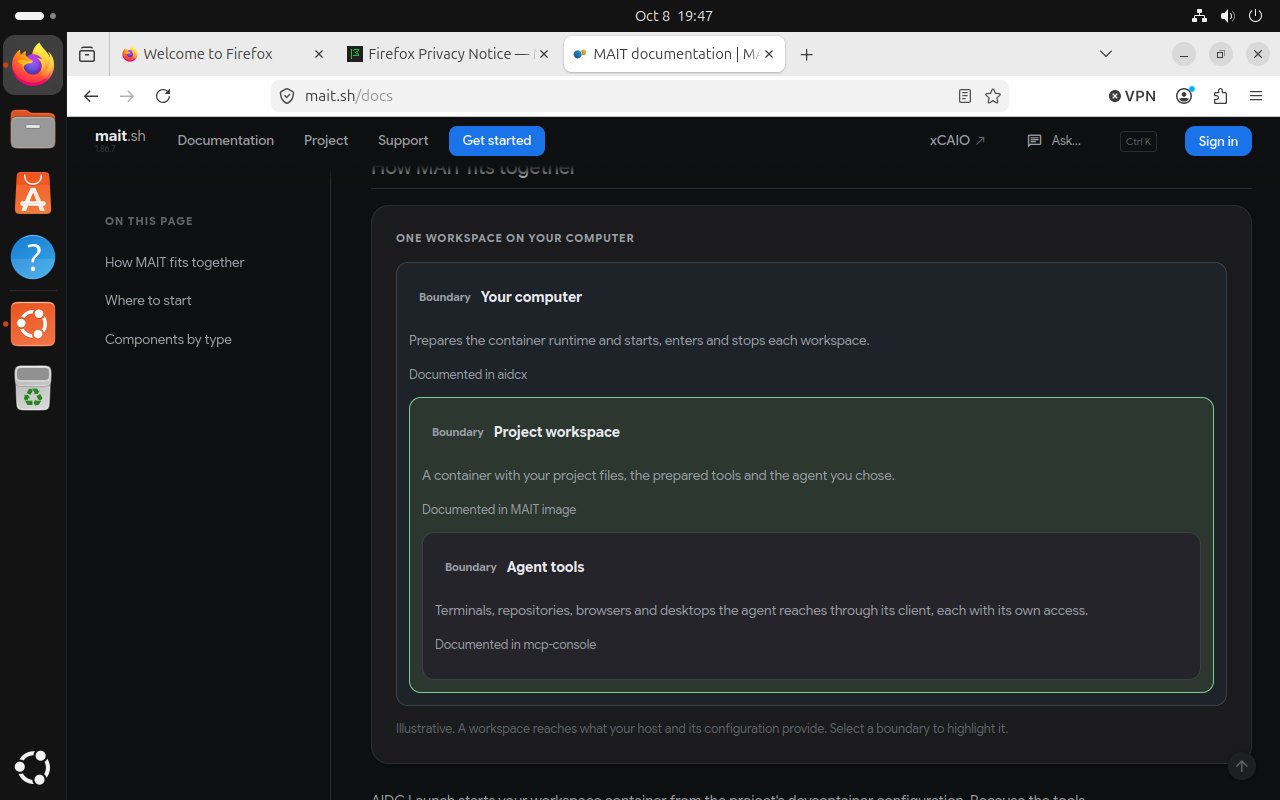
What happensThe MAIT documentation page, loaded over the machine's network connection.
Tool callvnc_key_press { "connectionId": "ubuntu-vm", "key": "Ctrl+Alt+t" }
Tool callvnc_screenshot { "connectionId": "ubuntu-vm", "colorDepth": 24, "delay": 3000 }
What happensAn empty terminal window is open and has the focus.
Tool callvnc_type { "connectionId": "ubuntu-vm", "action": "text", "text": "lsb_release -ds; uname -sr; df -h / | tail -1; curl -sI https://mait.sh | head -1", "enter": true }
Tool callvnc_screenshot { "connectionId": "ubuntu-vm", "colorDepth": 24, "delay": 3000 }
What happensThe terminal shows Ubuntu 26.04 LTS, Linux 7.0.0-29-generic, a root disk 29 percent full and HTTP/2 200 from mait.sh.
Tool callvnc_pointer { "connectionId": "ubuntu-vm", "action": "click", "x": 33, "y": 129 }
Tool callvnc_key_press { "connectionId": "ubuntu-vm", "key": "Ctrl+Shift+n" }
Tool callvnc_type { "connectionId": "ubuntu-vm", "action": "text", "text": "smoke-test-report", "enter": true }
Tool callvnc_screenshot { "connectionId": "ubuntu-vm", "colorDepth": 24, "delay": 2500 }
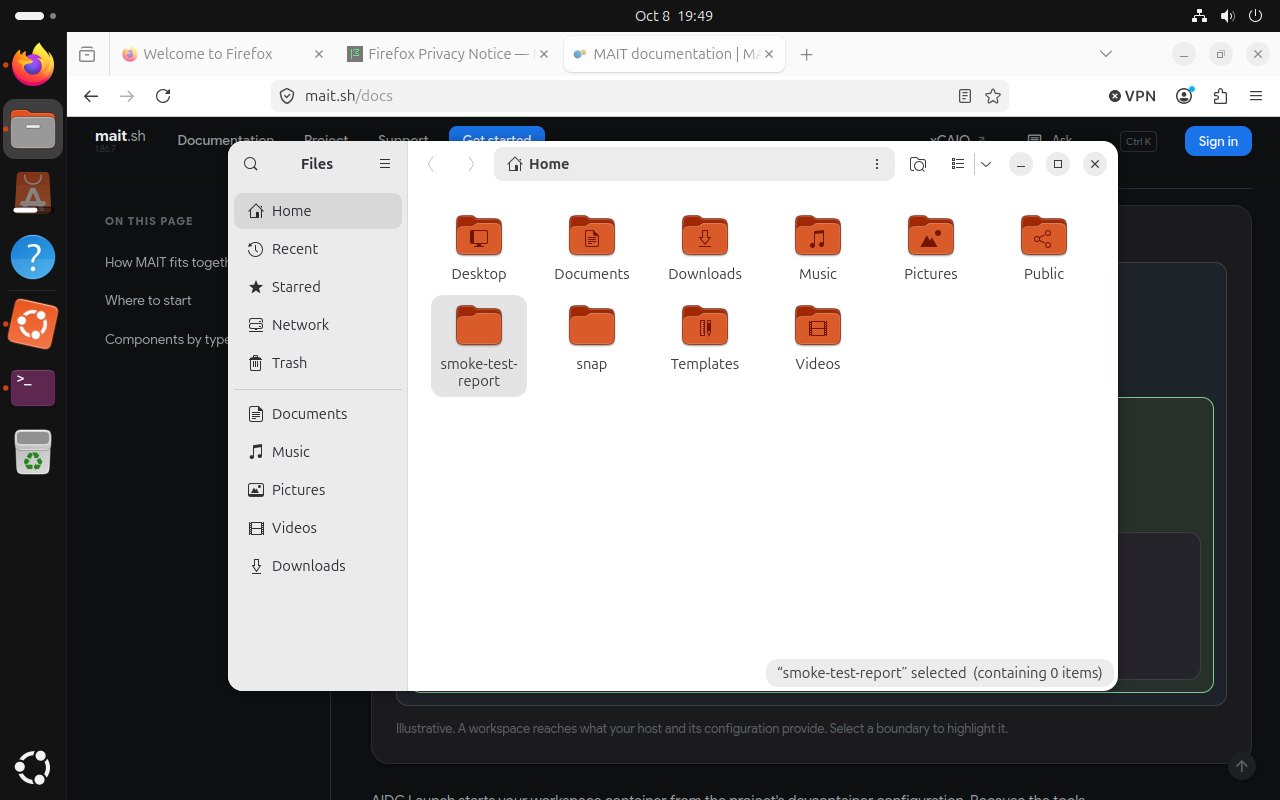
What happensFiles shows the new folder smoke-test-report in the home folder.
AgentThe desktop works. I could log in, Firefox loaded the documentation, the terminal reports Ubuntu 26.04 with a working network, and Files created the folder. I did not try to install software, because this account has no sudo rights.
The MAIT documentation open in Firefox on the virtual machine
A real capture after the agent worked through Firefox's first-run pages and loaded the documentation.

The terminal capture shows the system version, free disk space and the answer of a web request from inside the virtual machine.
Files showing the folder the agent created
A real capture: the folder smoke-test-report in the home folder.
Condense

Keep only what changed in the recording.

You want proof of a long piece of work, but nobody will watch a minute of a screen that mostly sits still.

Capturedmcp-vnc 0.7.5
YouRecord the desktop while you run the same checks again, and give me the short version.
Tool callvnc_start_video { "connectionId": "ubuntu-vm", "maxDurationSecs": 150, "filename": "smoke-test.webm", "condense": { "profile": "balanced", "keepOriginal": false } }
What happensReturns status recording at 1280 by 800, with the condensed profile balanced and an analysis rate of 10 frames a second.
What happensThe agent opens the documentation in a new Firefox tab and scrolls, runs a command in a terminal, and creates a folder in Files.
Tool callvnc_stop_video { "connectionId": "ubuntu-vm" }
What happensReturns status stopped. The condensed video lasts 24.5 seconds with 99 frames encoded and 5 ranges kept, and the recording itself took about 35 seconds. The analysis lists 4 settled events and 21 screenshots, and nothing was dropped or truncated. The file has no audio, because VNC carries none.
AgentThe short version is the 24-second video: documentation, terminal, Files.
Settle

Wait for the screen to settle.

The agent started something slow, such as an installer, and checking again and again would waste your tokens.

Illustrative conversation
YouStart the update and tell me when the screen stops changing.
Tool callvnc_start_video { "connectionId": "vm-console", "condense": { "notifyOnSettle": true } }
What happensReturns status recording, with the condensed profile balanced and the sampling rate.
Tool callvnc_pointer { "connectionId": "vm-console", "action": "click", "x": 640, "y": 500 }
What happensLeft clicked Single at (640, 500).
What happensA settled notification arrives once the progress bar finishes, with the screenshot taken at its end.
Tool callvnc_screenshot { "connectionId": "vm-console" }
AgentThe update finished and the screen has settled on the confirmation page. I read it to be sure.
Keep awake

Keep a desktop awake during a long run.

The agent works for a long time on a machine that locks or sleeps its display after a while, and a locked screen would stop the work.

Capturedmcp-vnc 0.7.5
YouKeep that desktop awake while you work.
Tool callvnc_keep_awake { "connectionId": "guide-demo", "intervalMs": 30000 }
What happensReturns status started, an interval of 30000 milliseconds and a tick count of 0, since no tick has run yet.
Tool callvnc_connection_list {}
What happensLists guide-demo with its host and port, and shows that no password or username is stored on the slot.
AgentThe desktop is being nudged every 30 seconds. I will drop the connection when I finish, which also stops the nudges.